A file extension is the portion of a filename that appears after the final period, such as in “filename.ext”. Common examples include:
.txt
.pbn
.js
The extension identifies the general type of the file. Windows uses it to choose the icon to display, determine which application opens the file by default, and apply other file‑handling behaviors.
On Windows, filenames and extensions are not case‑sensitive. For example, a “PBN file” simply means a file whose name ends with “.pbn”, and it usually implies that the file’s contents follow the Portable Bridge Notation format.
By default, most file extensions are hidden, presumably under the assumption that you can identify a file's type by its icon. However, when a single app is set as the default app for more than one file type, the same icon may be shown for multiple types, leading to confusion. This is one reason that it is helpful to be able to see the extensions for all files.
To unhide them, in Windows 11, you may just use File Explorer and choose "View → Show → File name extensions".
Otherwise, in all versions of Windows, you may use the "Folder Options" panel.
(In Windows 10 and 11, this same panel is also known as "File Explorer Options".}
In this panel, select the "View" tab:
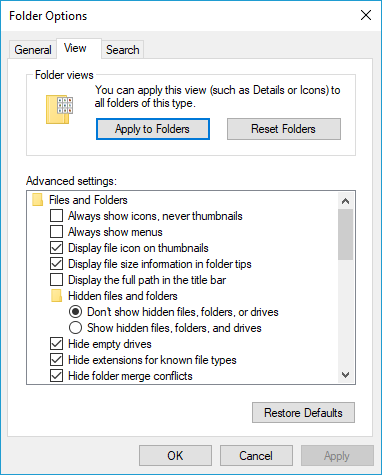
Find and un-check the "Hide extensions for known file types" option (second from the bottom in the screenshot above). Then click "OK".
Changing a file's extension does not change the content of the file in any way. (You can't change a PBN file into a PDF file just by changing the file's extension!) But it does very likely change the file's icon and the app that will open the file by default (when you double-click it). This is the reason that Windows displays a warning message when you change a file extension.
So why would you do it? One issue is that, for security reasons, email apps may restrict the file types that can be sent or received as attachments. Commonly blocked are EXE, BAT, COM, SCR, PIF, JS, VBS, ZIP, and EML. The script types (BAT, JS, and VBS) can be sent by changing their extension to ".txt". In the body of your email, you can notify the recipient to change the file extension back.
To change a file's extension, just perform a "rename":
In File Explorer, click on the file name (not its icon). An edit box will open for the filename:

(Notice that in the edit box, the name part is selected and the extension part is not, just the opposite of what you want. Oh well.)
Use the mouse and keyboard as you would in any edit box to select and change the extension part, and then press the Enter key.
You will receive a warning message: "If you change a file name extension, the file might become unusable. Are you sure you want to change it?". Answer "Yes".
To open a file with an app other than the default app for its file extension: Right-click the file and use "Open with >" to choose the app.
DISCLAIMER: Software from this site is provided "as is". In no event shall the author be liable to you or any third party for any damages of any kind arising out of or relating to the software or the use thereof.
 BridgeComposer